Every successful Facebook or Instagram ad campaign starts with understanding how your audience interacts with your website. That’s where the Meta Pixel, formerly known as the Facebook Pixel, comes in. It’s a powerful tracking tool that collects valuable data about user behavior, helping marketers see which ads drive clicks, leads, and purchases.
By using Meta Pixel, you can track conversions, build custom and lookalike audiences, and optimize ad targeting to make every dollar of your ad budget count. In this guide, we’ll explain what Meta Pixel is, why it’s important for digital marketing, and walk you through how to create and install it step by step, so you can start improving your campaign performance with accurate, data-driven insights.
What Is Meta Pixel?
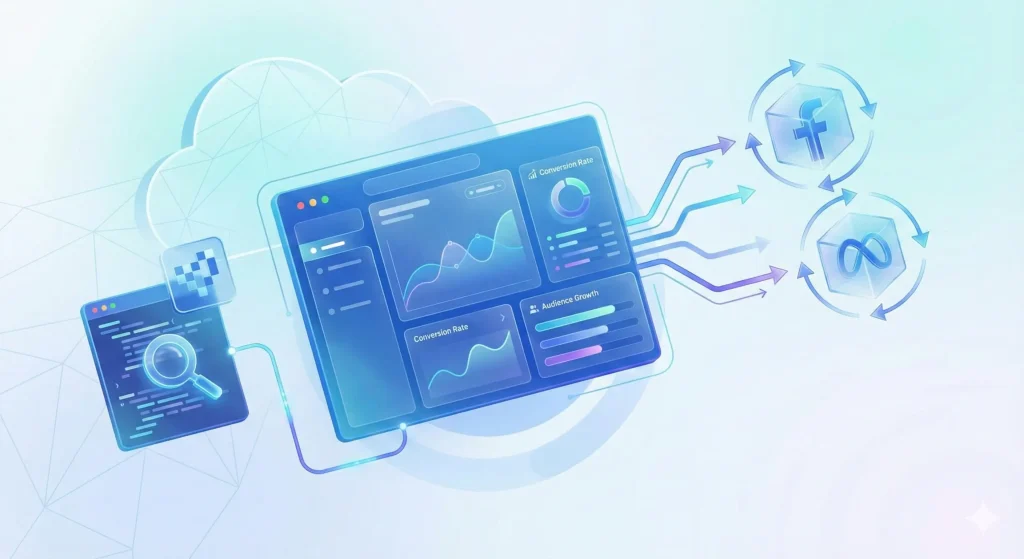
The Meta Pixel is a small piece of JavaScript code that you add to your website to track how visitors interact with your pages. It collects data about actions like page views, button clicks, form submissions, and purchases.
This information helps advertisers understand user behavior, measure the success of their Facebook and Instagram ads, and optimize campaigns for better results. In short, Meta Pixel connects your website activity with your Meta ads, allowing you to reach the right audience and improve conversions.
Key Benefits & Capabilities
The Meta Pixel gives businesses powerful insights and tools to make their Meta advertising more effective. Tracking user actions and connecting them with ad performance helps brands spend smarter and reach the right audience at the right time.
Main capabilities include:
- Conversion tracking across devices: See how people interact with your ads on different devices and track when they complete key actions like purchases or sign-ups.
- Building Custom Audiences: Collect data to retarget visitors who have already shown interest in your products or services.
- Building Lookalike Audiences: Find new potential customers who share similar traits and behaviors with your best existing customers.
- Retargeting/remarketing: Show ads to users who visited your website but didn’t convert, reminding them to take action.
- Optimizing ad delivery (via Meta Ads): Help Meta’s algorithm automatically show your ads to people most likely to convert.
Together, these features make the Meta Pixel an essential part of any digital marketing strategy, helping you track performance, improve targeting, and boost return on ad spend.
How Meta Pixel Works – The Technical Flow
When someone visits your website, here’s what happens in simple terms:
- A user lands on your page, and the browser loads the site.
- The small JavaScript code of the Meta Pixel runs (this is the “base code”) and records that the page was viewed.
- If you’ve set up any events (for example, a purchase, form submission or scroll), those are also sent along.
- That information travels to Meta Events Manager (Meta’s dashboard) and is matched to your ad account.
- With that data, Meta can show you reports and optimise your ads based on real website actions.
Standard Events vs Custom Events
- Standard Events: These are predefined actions that Meta recognises out of the box — for example “PageView”, “AddToCart”, “Purchase”. They work without you needing to invent a new event name.
- Custom Events: These are events you define because the standard ones don’t cover exactly what you want. For example “WatchedIntroVideo” or “ClickedSpecialOfferButton”. You set these up for more specific tracking needs.
Automatic vs Manual Event Tracking
- Automatic Event Tracking: Meta can detect certain user actions automatically (once enabled) without you manually adding code for each action. It’s a good starting point.
- Manual Event Tracking: You specifically add code or set up tools (like Google Tag Manager) to fire events when exact actions happen. This gives you full control and is essential when your website has custom actions worth tracking.
How to Create a Meta Pixel (Step‑by‑Step)
Before installing tracking code on your website, you first need to create the Meta Pixel in your account. These steps will walk you through how to set it up correctly so you can begin collecting data and optimizing your ads.
Steps:
- Access Meta Business Account & Events Manager: Log in to your Meta Business Suite (or Business Manager) and navigate to Events Manager.
- Select Connect Data Sources: In Events Manager click the “Connect Data Sources” (or similar) button, select Web, then choose “Meta Pixel” (sometimes shown as “Create Pixel”).
- Name the Pixel & Enter Website URL (optional): Give your Pixel a clear name (for your website or campaign). Optionally enter your website’s URL if prompted.
- Obtain Pixel ID (and optionally base code snippet): Once created, you’ll receive a Pixel ID, a unique number, and sometimes the base JavaScript code snippet for the website. Copy and save this for installation.
- Set Up First Events or Prepare for Installation: After creation you can either go ahead and create your first “standard” events (e.g., Purchase, AddToCart) or simply prepare your website for the base code installation. This sets the foundation for tracking user actions.
How to Install Meta Pixel on Your Website
Whether you are a beginner or an experienced marketer, there are several ways to install the Meta Pixel depending on your website platform and technical preference. Below are four clear methods from easiest to most advanced.
Plugin or Partner Integration (Shopify, WordPress, WooCommerce)
This is the fastest and simplest method for most users.
- On Shopify, go to the Facebook and Instagram settings in your sales channels, enable data sharing, and select your Pixel.
- OnWordPress, install the official Meta Pixel plugin, activate it, connect your Meta Business account, and choose the Pixel you created.
Manual Code Installation (Base Code Method)
- For full control or custom websites, follow these steps:
- Copy the base Meta Pixel code from your Events Manager.
- Paste it in the header section of every page on your website.
- Add event tracking for important actions like purchases, form submissions, or clicks.
- Save and upload your changes.
Google Tag Manager (GTM) Installation
For advanced tracking and easier tag management:
- Log in to GTM and open your website container.
- Create a new tag using Custom HTML or a Meta Pixel template.
- Paste your Pixel code or configure it with your Pixel ID.
- Set the trigger to run on all pages.
- Publish the container to make the Pixel active.
Verification and Initial Testing
- After installing the Pixel, you must verify that it is working correctly:
- Use the Meta Pixel Helper browser extension to check if the Pixel fires and records events.
- In Events Manager, use the Test Events tool to confirm actions like page views or add-to-cart are tracked.
- Check for issues like duplicate Pixels, missing events, ad-blocker interference, or cookie consent problems.
Setting Up and Tracking Events
Once you’ve installed the Meta Pixel, the real value begins when you set up events, these let you track the specific actions people take on your website. By monitoring events, you move beyond generic visitor counts to meaningful interactions like purchases, leads, or content engagement. Standard events are the predefined actions that Meta recognises out of the box, for example, PageView, ViewContent, AddToCart, and Purchase.
Custom events, on the other hand, are actions you define yourself when your business needs more specific tracking, for instance, “Requested Quote” or “Watched VideoIntro”. Use custom events when the standard ones don’t cover your unique conversion points.
In practice, for an e‐commerce site you might track a “Purchase” event after checkout complete; for a lead‑gen site you might use “Lead” or “FormSubmitted” custom event; and for a content site you could track “VideoPlay” or “ScrollDepth” custom events. Using the right mix of standard and custom events gives you sharper insights, smarter audience building, and more precise ad optimisation.
Audience‑Building & Ad Optimization Uses
When you start collecting website event data with the Meta Pixel, it transforms from just analytics into actionable advertising. The true value lies in taking that data and turning it into targeted audiences and smarter ad delivery—so you not only reach people, but reach the right people.
Building Custom Audiences
With the Pixel installed, you can create Custom Audiences from visitors who performed specific actions—such as viewing a product, adding to cart, or visiting a landing page. LSEO+2Cab Hospitality+2 These audiences let you retarget people who already showed interest, increasing the chance of conversion while saving ad budget by avoiding cold traffic.
Building Lookalike Audiences
Once you have a quality Custom Audience, use it as a seed for a Lookalike Audience. Meta’s algorithm examines the traits of your seed audience (behavior, demographics, purchase history) and finds similar people in your chosen location. Carbon Box Media+2Pixis+2 This expands your reach to fresh, relevant prospects who are more likely to convert than broad, untargeted audiences.
Optimizing Meta Ad Campaigns
By combining Pixel‑tracked events and these audience types, you can optimize ad campaigns for better performance. For example, you can set up campaigns to deliver ads specifically to recent site visitors, frequent cart abandoners or high‑value purchasers—rather than simply targeting broad interest groups. This improves targeting precision and maximizes your return on ad spend (ROAS). AGrowth.io+1
Example scenarios
- An e‑commerce site targets “AddToCart but did not purchase” custom audience with a discount offer, while simultaneously running a 1 % lookalike of past purchasers to scale.
- A content business uses the Pixel to track “VideoWatch75%” and then creates a custom audience of those users, followed by a lookalike campaign to reach similar high‑engagement users.
- A lead‑generation firm sets a “FormSubmitted” event and retargets those who visited the page but didn’t submit, while using lookalikes of converted leads to find new prospects.
By aligning your ad strategy with the data your Pixel collects, you turn passive tracking into an optimized growth engine.
Troubleshooting and Best Practices
It’s common to face tracking issues with the Meta Pixel, but many problems can be prevented with proper setup and monitoring.
Key issues to watch out for:
- Pixel not firing: Check that the pixel code is correctly placed in the site header and confirm it isn’t blocked by ad‑blockers or browser privacy settings.
- Duplicate events: Happens when the same event triggers multiple times due to overlapping scripts or both plugin and manual installations.
- Data delay or missing conversions: Ensure your Pixel ID is correct, the domain is verified, and event parameters such as value and currency are properly configured.
- Privacy and consent issues: If visitors haven’t given consent for cookies or data collection under GDPR or CCPA, tracking may be limited or incomplete.
Best practices to follow:
Use clear and consistent naming for your pixel, events, and parameters to simplify tracking and auditing.
- Keep event parameters uniform for accurate reporting, such as always including value and currency in purchase events.
- Avoid over-tracking unnecessary actions and focus only on events that will be used for optimization and reporting.
- Regularly check diagnostics in Events Manager and test new events or site changes before running major campaigns.
Following these best practices ensures your Meta Pixel collects reliable data that can be used effectively for ad optimization and audience targeting.
Privacy, Consent & Data Compliance
User consent and data compliance are critical when using the Meta Pixel. Laws such as GDPR in Europe and CCPA in California require that websites clearly inform visitors about data collection and obtain their consent before tracking. This ensures transparency, builds trust, and prevents legal issues.
Tips for compliance:
- Use clear cookie banners to notify visitors about tracking and give them the choice to accept or decline.
- Decide between opt-in (recommended for GDPR) or opt-out approaches based on your jurisdiction and legal requirements.
- Configure data-sharing settings in Meta Events Manager to control how events and customer data are collected and shared.
Alternative method: The Meta Conversions API allows server-side tracking, which sends event data directly from your server to Meta. This is useful for improving data accuracy, especially when browser restrictions, ad blockers, or privacy settings limit standard Pixel tracking.